
Calendar
The Calendar lets you visually plan when your posts will be published on LinkedIn. It shows your posting schedule and helps you manage upcoming content.
What the Calendar Does
The Calendar provides a visual overview of your content schedule and helps you plan when posts will be published.
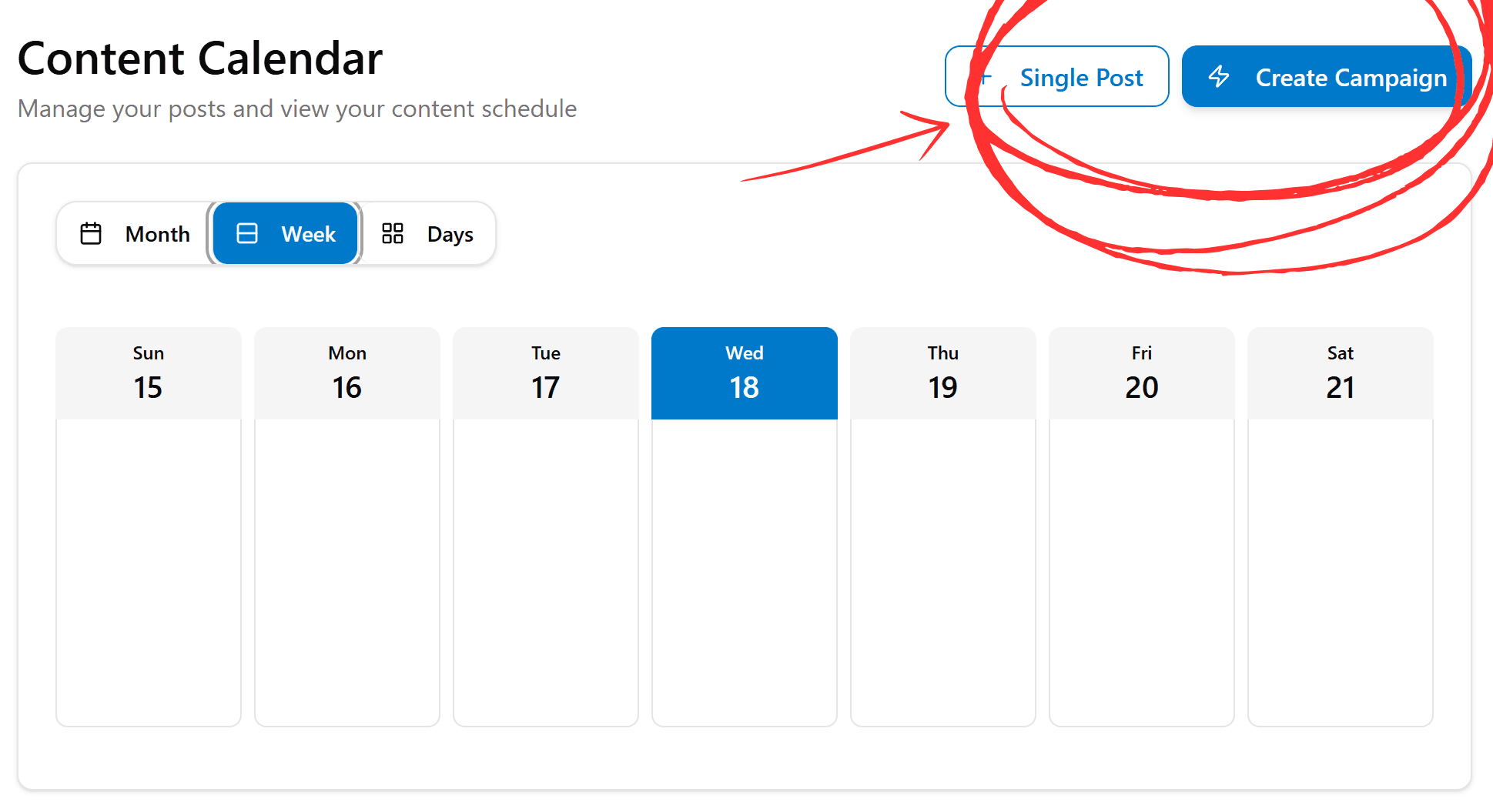
Calendar Views Available
You can switch between:
- Month view → for long-term planning
- Week view → for upcoming posts overview
- Day view → for checking exact publishing times
How to Schedule a Post from Calendar
Option 1: Create Single Post
Click Single Post
Select the Single Post option in the calendar
Write or Generate Content
Create your content using the post editor
Select Publishing Date and Time
Choose when you want the post to go live
Save Schedule
Confirm to add the post to your calendar
Option 2: Create Campaign
Click Create Campaign
Select the Create Campaign option
Add Multiple Posts
Add several posts to the campaign
Set Schedule for Each Post
Define when each post should publish
Start Campaign
Activate for automated posting over multiple days
Selecting a Date
Click any day in the calendar, then create or assign a post to that date.
Campaigns allow automated posting over multiple days, making it easy to plan content series.
If No Posts Show in Calendar
Possible reasons:
- No posts scheduled yet
- Posts saved only as drafts
- Campaign not started
What's Next?
- Create posts with Post Writer
- Organize content in Campaigns
- Save unfinished work as Drafts