
Settings
Manage your LinkedIn integration, company pages, subscription plans, invoices, timezone preferences, AI app connections (MCP), and data privacy in LinkAssist.
The Settings dashboard gives you centralized control over your LinkAssist account, linked LinkedIn profiles, team company pages, billing subscriptions, invoices, timezone rules, connected AI apps, and data privacy options.
You can access Settings anytime by clicking your profile icon in the lower-left navigation bar $\rightarrow$ Settings.
1. Account & Profile Integration
The Account tab displays your live LinkedIn synchronization status, connected credentials, and page administrator privileges.
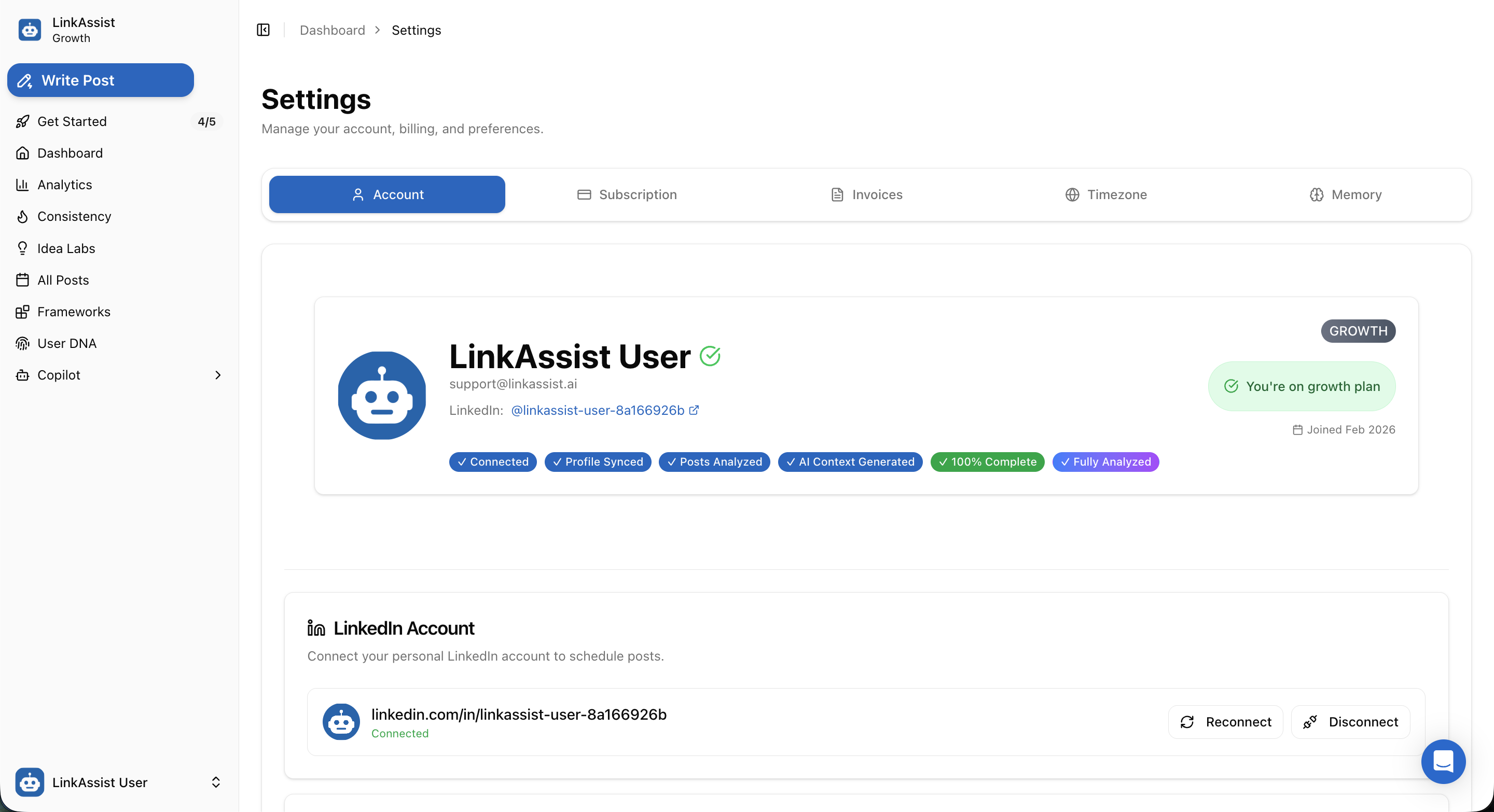
Profile Verification & Sync Metrics
| Indicator | Status | Purpose |
|---|---|---|
| Connected | ✓ Connected | Confirms valid OAuth token with LinkedIn API. |
| Profile Synced | ✓ Synced | Headline, bio, experience, and profile picture imported. |
| Posts Analyzed | ✓ Analyzed | Historical post impressions, reactions, and formats cataloged. |
| AI Context Generated | ✓ Generated | Content style and audience preferences mapped into User DNA. |
| System Readiness | ✓ 100% Complete | Account is fully prepared for AI post generation and automated distribution. |
LinkedIn Account Connection
- Connected Profile: Displays your unique LinkedIn URL identifier (
linkedin.com/in/linkassist-user-...). - 🔄 Reconnect: Refresh expired OAuth tokens or permissions without losing historical analytics.
- 🔌 Disconnect: Safely unlink your profile to revoke LinkAssist access.
2. Company Pages & Account Deletion
Scroll down within the Account tab to manage organization pages and access data deletion safeguards.
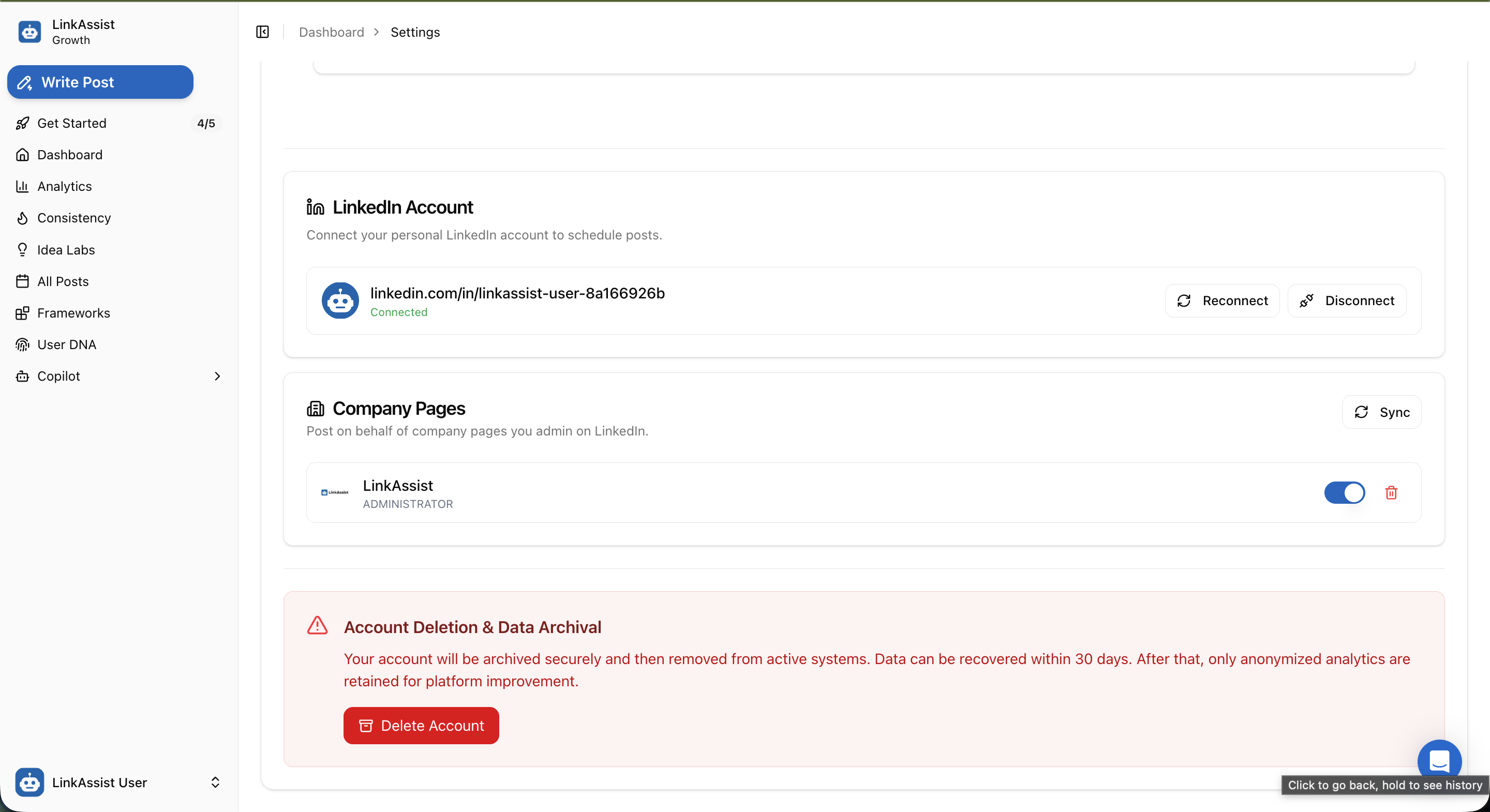
A. Company Pages Management
- Post on Behalf of Organizations: If you are a LinkedIn Page Administrator, LinkAssist automatically detects your company pages.
- 🔄 Sync Button: Re-fetch newly created or assigned company pages from LinkedIn.
- Toggle Activation (
ON/OFF): Enable or disable automated publishing to specific company feeds.
B. Account Deletion & Data Archival Protocol
LinkAssist follows an enterprise-grade data safety protocol when handling account removals.
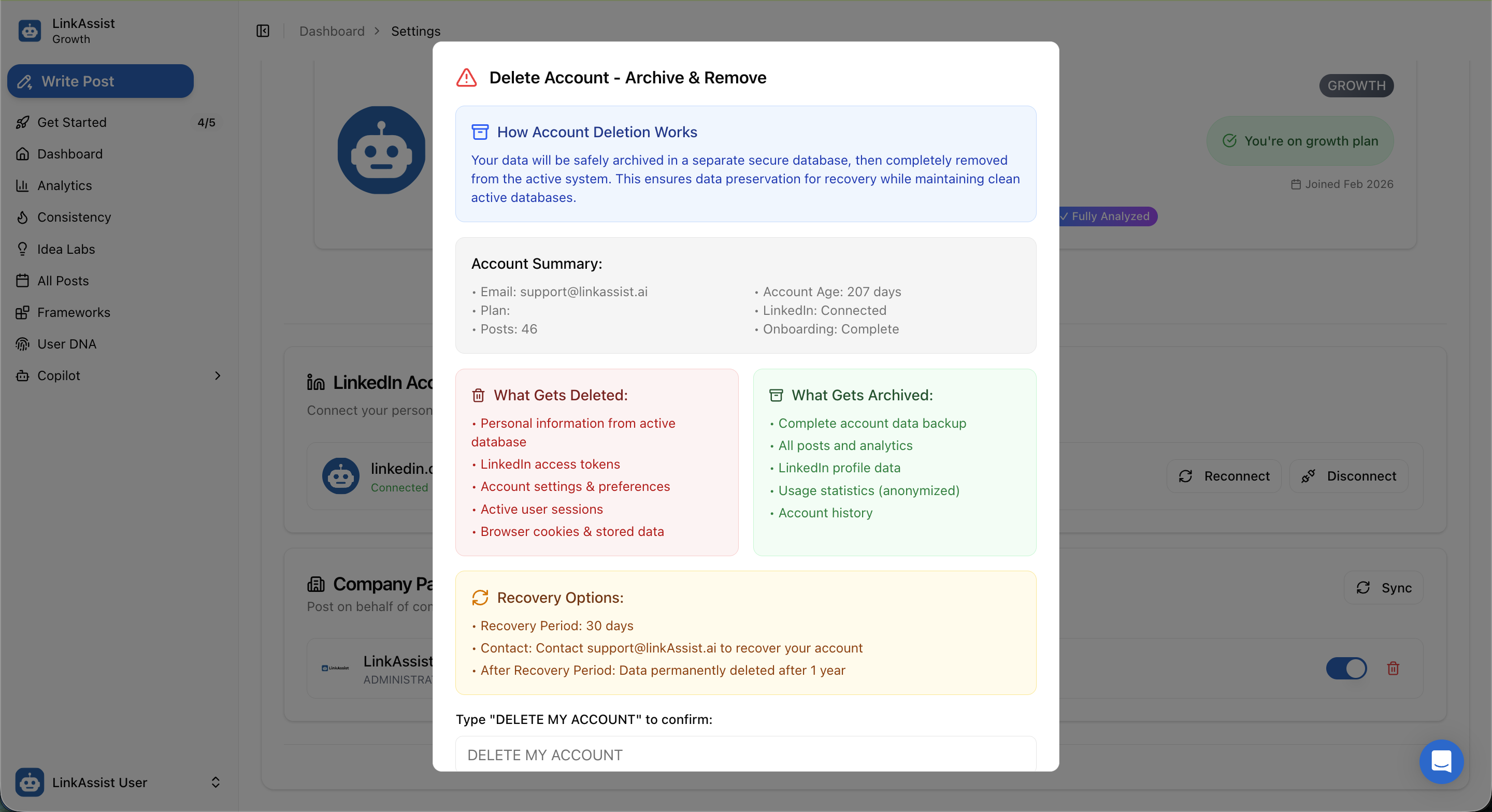
Data Lifecycle Breakdown
| 🗑️ What Gets Immediately Deleted | 🗄️ What Gets Securely Archived |
|---|---|
| • Personal information from active database | • Complete account data backup |
| • LinkedIn OAuth access tokens | • All post drafts, schedules, and analytics |
| • Account preferences and active sessions | • Synced LinkedIn profile metadata |
| • Browser cookies and session tokens | • Anonymized usage statistics |
30-Day Recovery Grace Period: Deleted accounts are held in cold storage for 30 days. Contact support@linkassist.ai within 30 days to restore your account. After 1 year, all archival backups are permanently purged.
3. Subscription & Usage Overview
The Subscription tab provides real-time tracking of your active tier, monthly allowances, and bonus allocations.
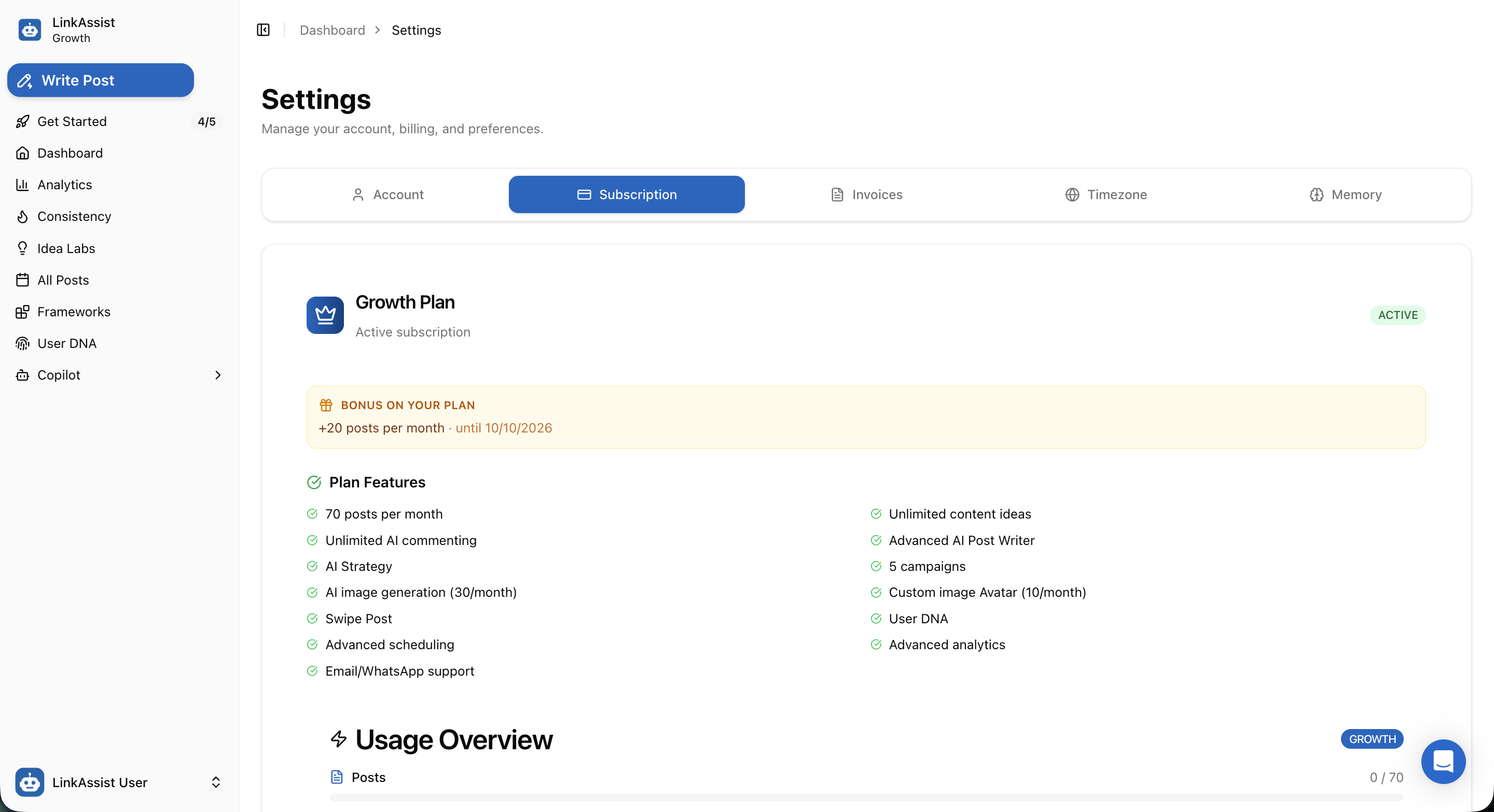
Growth Plan Features & Limits
- Monthly Post Quota: 70 AI posts per month (+ promotional bonus additions).
- Unlimited Content Ideas & AI Commenting: Infinite niche topic generations in Idea Labs.
- AI Media Studio: 30 AI image generations and 10 custom likeness avatars per month.
- Advanced Features: User DNA voice matching, Copilot AI Strategist, 5 simultaneous Campaigns, and All Posts multi-view management.
- Priority Support: Direct email and WhatsApp concierge assistance.
4. Invoices & Billing Records
The Invoices tab allows you to review historical subscription charges, tax details (GST), and download official PDF tax invoices.
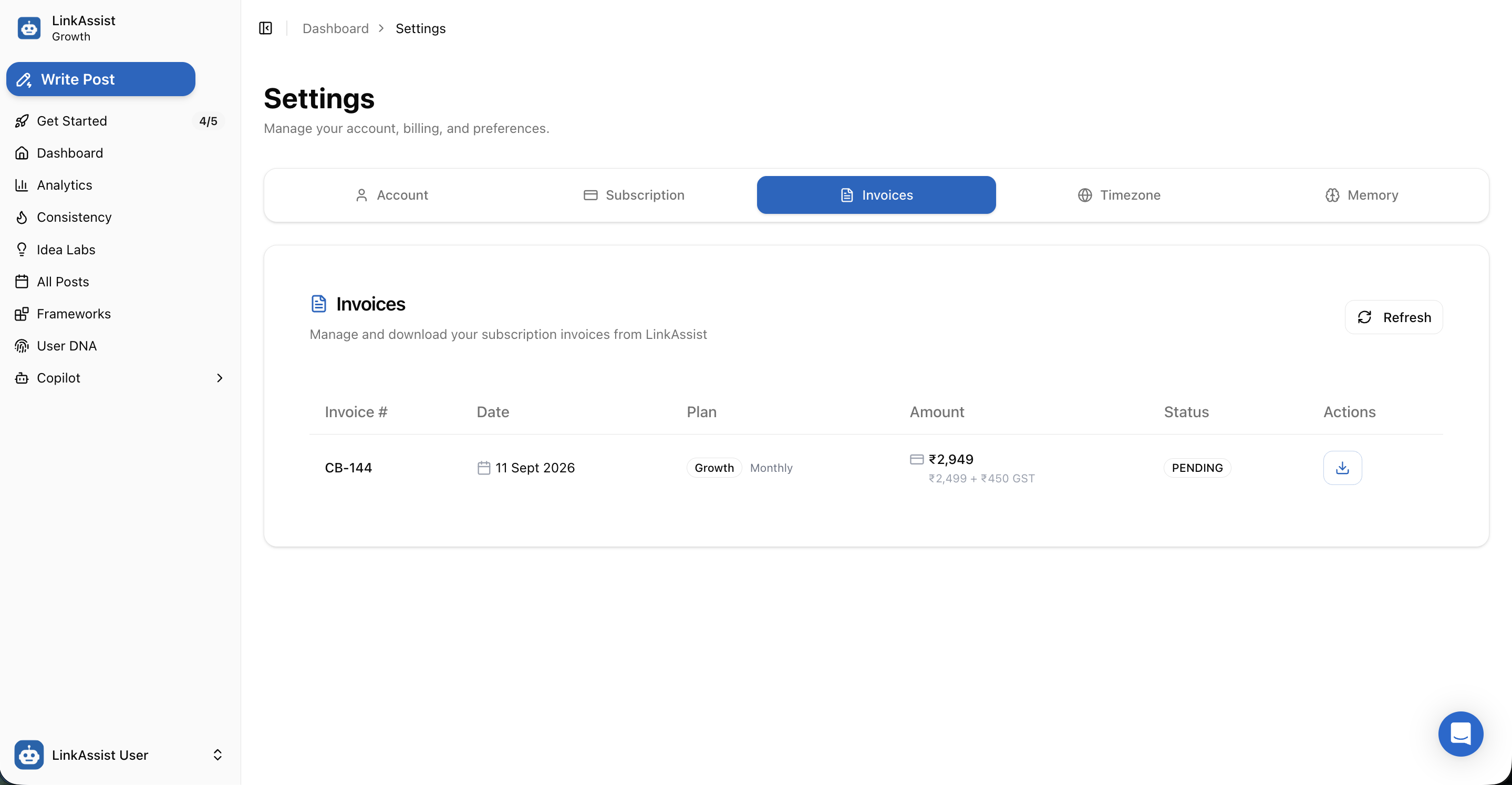
Invoice Information Table
- Invoice #: Unique billing reference ID (e.g.,
CB-144). - Date: Exact charge date (e.g.,
11 Sept 2026). - Plan & Base Cost: Subscription tier with itemized GST breakdown (e.g.,
₹2,499 + ₹450 GST = ₹2,949). - Status: Live payment condition (
PAIDorPENDING). - ⬇️ Download PDF: Instant download for tax filing and company expense reimbursement.
5. Timezone & Scheduling Preferences
The Timezone tab guarantees that your automated LinkedIn queues publish at your local peak-engagement windows.
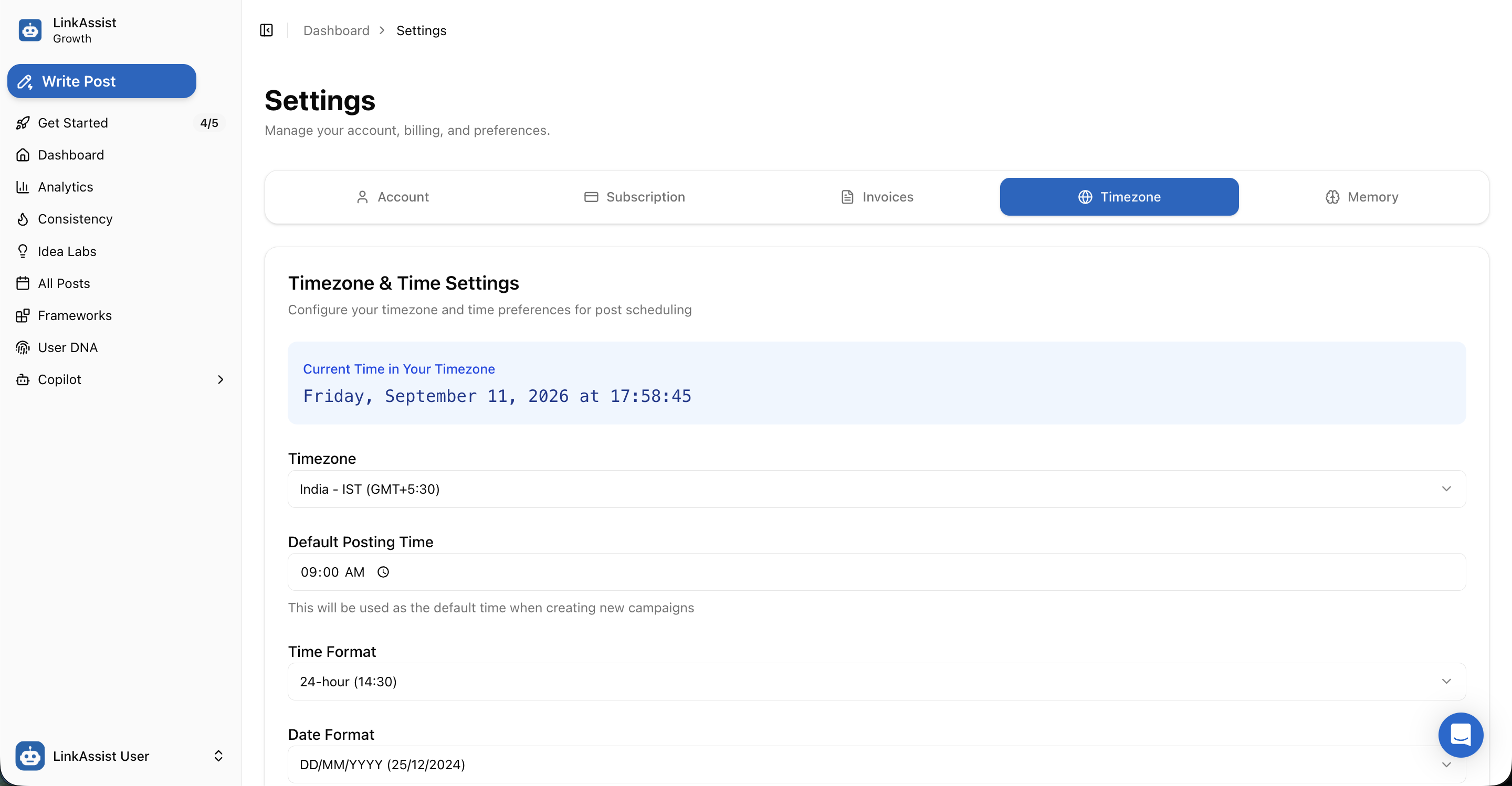
Configurable Preferences
| Setting | Options | Description |
|---|---|---|
| Live Timezone Indicator | Real-time clock | Shows current synchronized system time (e.g., Friday, September 11, 2026 at 17:58:45). |
| Timezone Selector | Global IANA timezones | Select your region (e.g., India - IST (GMT+5:30)). |
| Default Posting Time | Time picker (09:00 AM 🕒) | Pre-fills the default time slot when creating new posts or campaigns. |
| Time Format | 24-hour (14:30) / 12-hour (02:30 PM) | Customizes time display across calendar and list feeds. |
| Date Format | DD/MM/YYYY, MM/DD/YYYY, YYYY-MM-DD | Aligns date formatting with your regional standard. |
6. MCP (Connect Your AI Apps)
The MCP tab connects LinkAssist to ChatGPT, Claude, Cursor, Claude Code or any other app that supports MCP. Once connected, the app can write posts in your voice, schedule them and publish them, and everything it creates shows up in your drafts and calendar.
| Section | What it does |
|---|---|
| Your MCP server URL | The one URL every app needs, with a Copy button. There is no key or token to paste. |
| Set it up | Pick your app to see its setup steps. Cursor and Claude Code also get a ready-made config or command with your URL in it. |
| Things to ask once connected | Starter prompts you can copy straight into your AI app. |
| Connected apps | Every app connected to your account, when it connected and when it was last used. Disconnect removes its access straight away. |
MCP connections are included on the Trial, Starter, Growth and Enterprise plans. The full walkthrough is in Use LinkAssist in ChatGPT, Claude & Cursor (MCP).
Next Steps
Chrome Extension
Supercharge your LinkedIn workflow with 1-click post bookmarking, inline AI comment generation, and real-time analytics synchronization.
Upgrade Plan
Compare LinkAssist subscription tiers (Starter, Growth, Enterprise), flexible billing cycles, non-expiring add-on credits, and self-serve Chargebee management.