
Distribution
Drafts
Save and manage unpublished LinkedIn content for later scheduling. Draft Posts store content that you created but haven't scheduled or published yet.
What Draft Posts Are
Use drafts when you want to:
- Finish writing later - Save work in progress
- Review before scheduling - Give yourself time to refine content
- Prepare posts in advance - Build up a content library
How to Create a Draft
Click Create New Post
Open the post editor
Write or Generate Content
Create your LinkedIn post content
Save Without Scheduling
Save the post without setting a publish date
Access in Draft Posts
The post will appear in your Draft Posts section
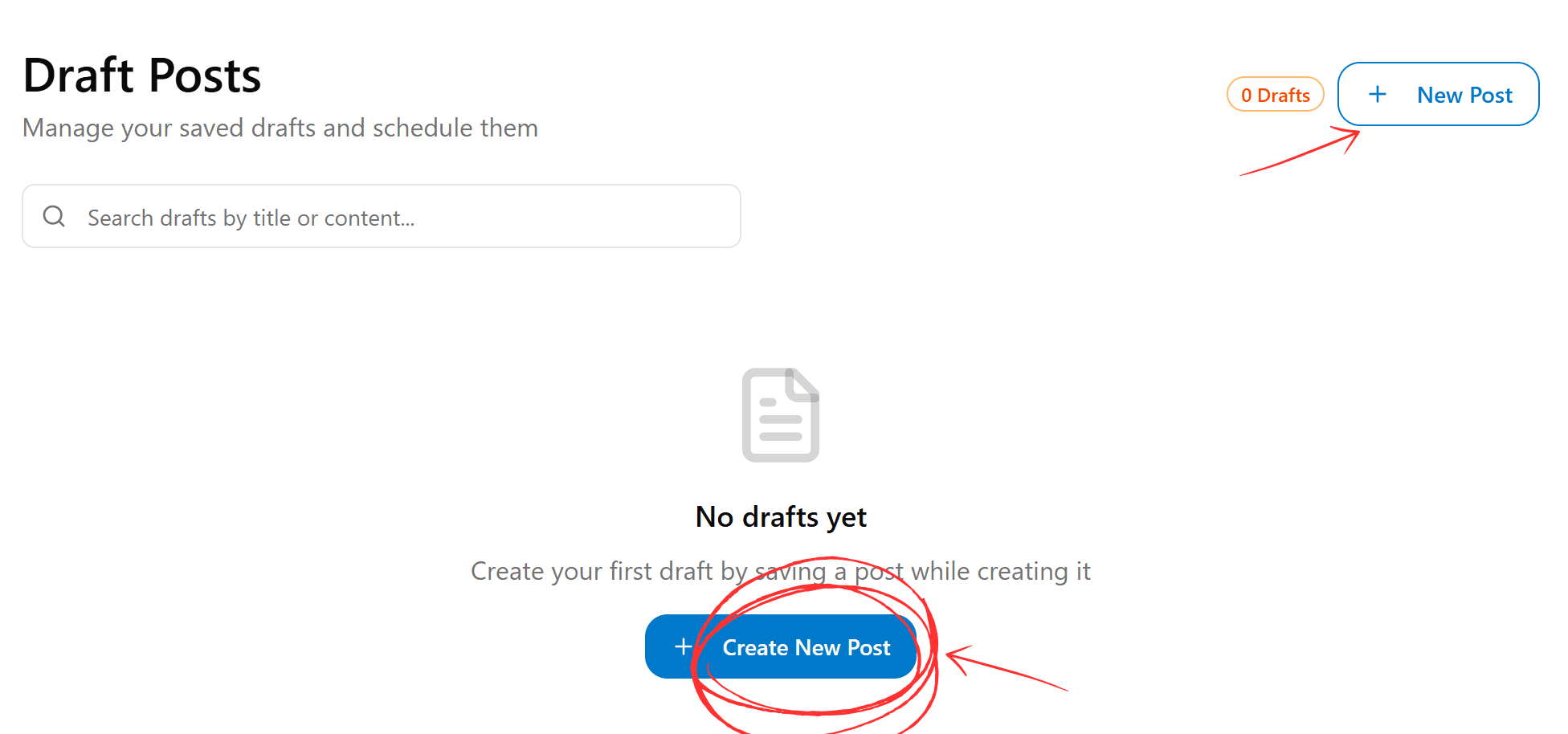
How to Find a Draft
To locate your drafts:
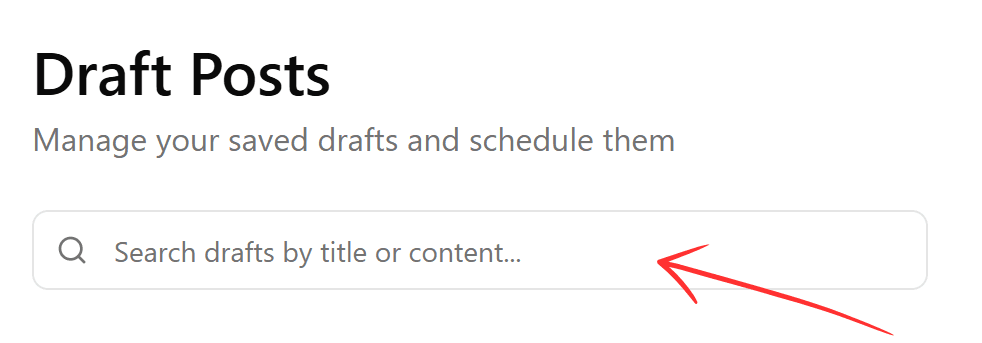
- Open Draft Posts from the menu
- Use the search bar to locate specific drafts
- Click any draft to edit or schedule it
If you see "No drafts yet", you haven't saved any posts. Create and save your first post to add a draft.
Managing Your Drafts
From the Drafts section you can:
- Search drafts by keyword or content
- Edit drafts to refine your content
- Schedule drafts to publish at specific times
- Delete drafts you no longer need
What's Next?
- Schedule drafts in your Calendar
- Add drafts to Campaigns
- Create new content with Post Writer