
All Posts
Manage, track, and organize all your LinkedIn content across Drafts, Scheduled, and Published stages using Calendar, List, and Kanban views.
All Posts is your central content headquarters in LinkAssist. It provides complete visibility over your entire LinkedIn publishing pipeline — including rough drafts, scheduled posts, AI-generated content, and published articles.
You can switch effortlessly between three powerful views (Calendar, List, and Kanban) depending on how you prefer to plan, review, and execute your content strategy.
Color-Coded Status System
LinkAssist uses a universal color-coding system across all views to instantly communicate post status:
| Status Badge | Color | Meaning |
|---|---|---|
| Draft | 🟠 Orange | Incomplete or unposted content saved for future editing or refinement. |
| Scheduled | 🔵 Blue | Posts set with an automated future date and time for publishing. |
| Published | 🟢 Green | Posts successfully published to your LinkedIn profile via LinkAssist. |
| 🟣 Purple | Posts imported or synced directly from LinkedIn. |
View Mode 1: Calendar View
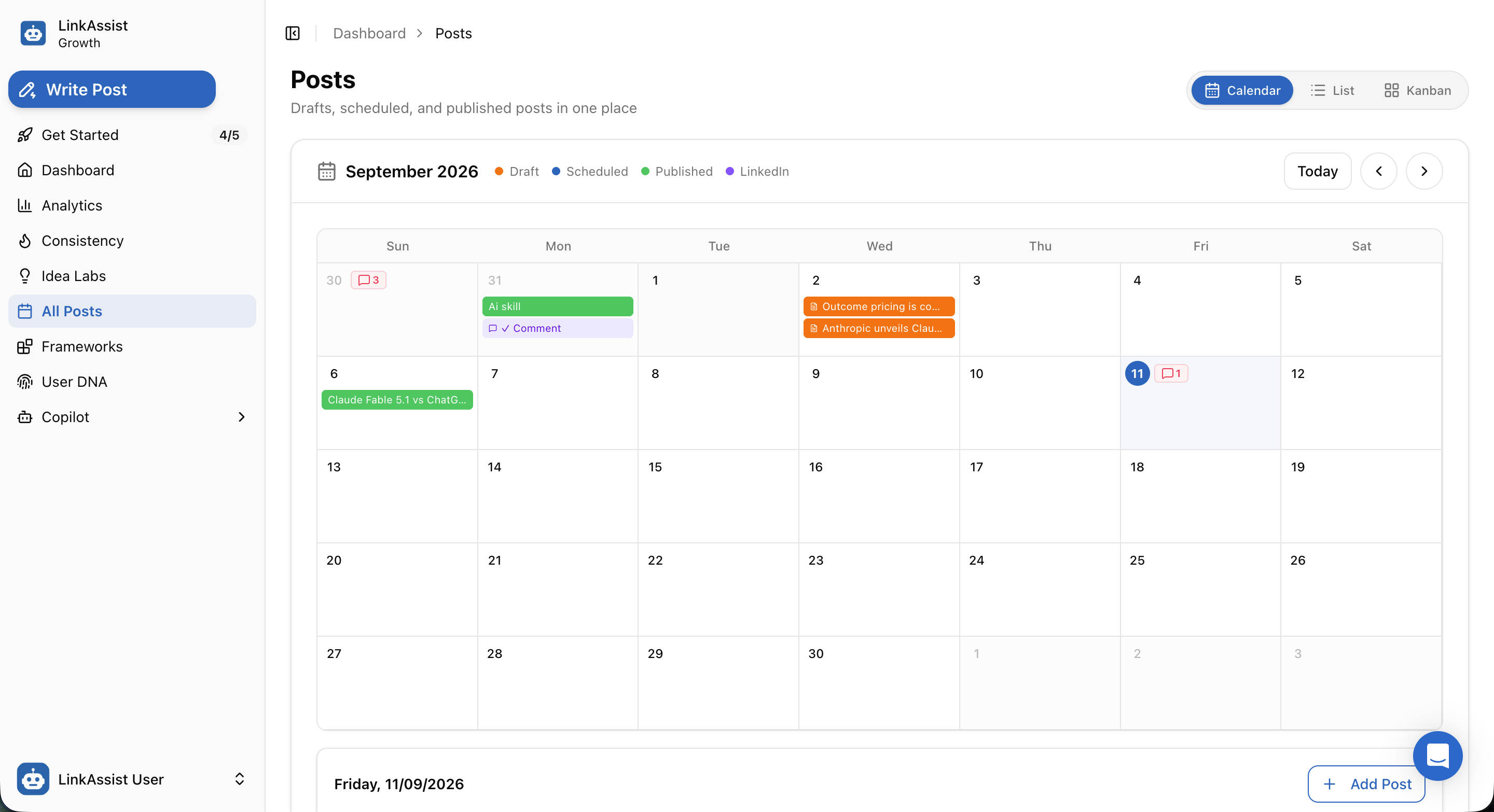
The Calendar View provides a month-by-month visual overview of your publishing cadence, helping you maintain consistency and spot gaps in your posting schedule.
Key Capabilities
- Monthly Navigation: Jump directly to
Todayor navigate across months using the<and>controls. - Visual Status Grid: See drafts, scheduled posts, and published items color-coded directly inside each calendar day.
- Engagement & Comment Badges: Visual indicators (e.g.,
💬 3,💬 ✓ Comment) show post comment activity and engagement status. - Quick Day Scheduling: Click on any date or use the + Add Post button at the bottom bar to schedule content directly for that day.
View Mode 2: List View
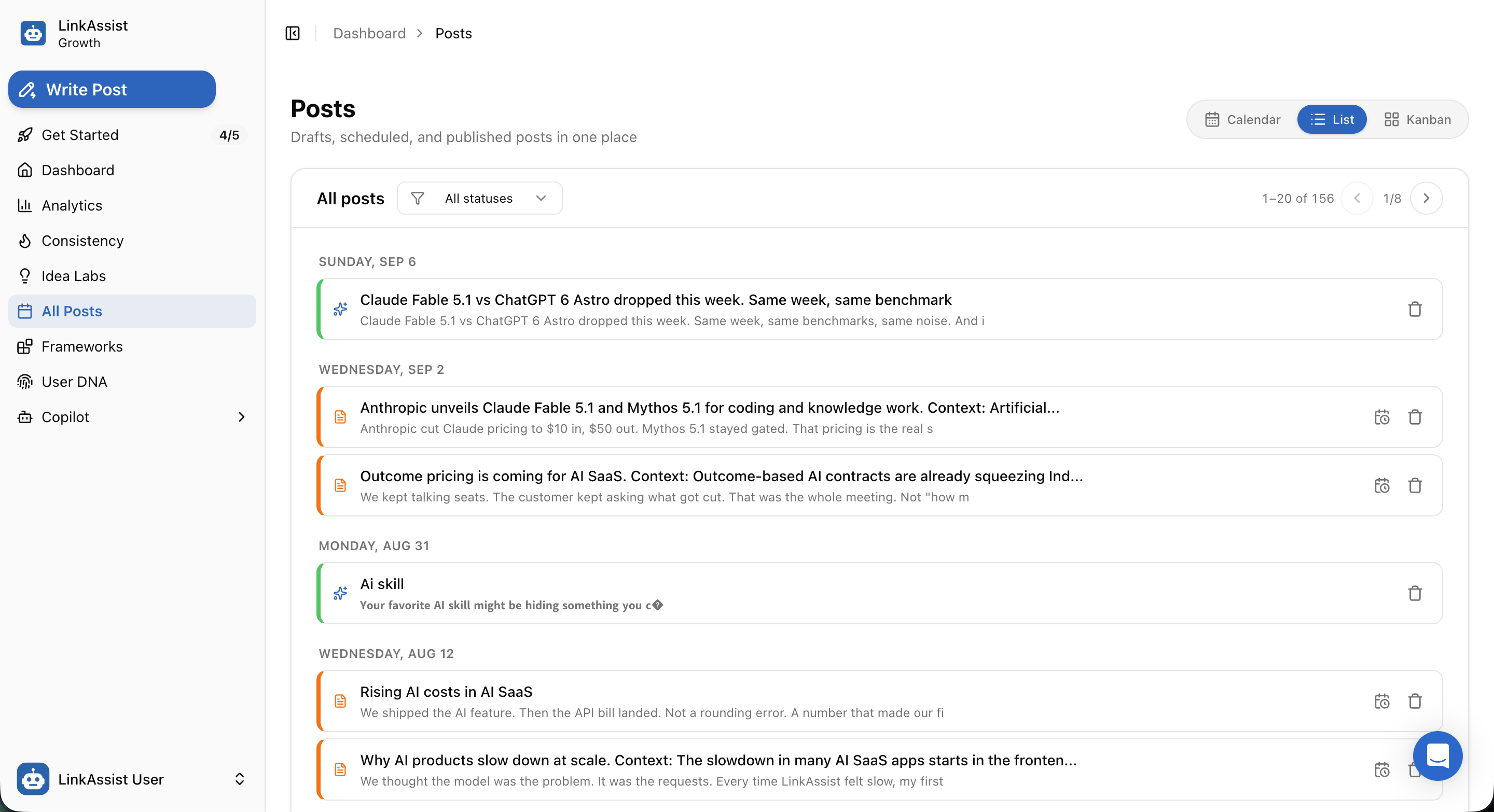
The List View displays your content chronologically grouped by date, offering an easy-to-scan feed for quick auditing, bulk reviewing, and status filtering.
Key Capabilities
- Status Filtering: Filter your view using the All statuses dropdown (view only Drafts, Scheduled, or Published posts).
- Chronological Date Grouping: Posts are structured under date headers (e.g.,
Sunday, Sep 6,Wednesday, Sep 2,Monday, Aug 31). - Post Previews & Hooks: View the full headline hook and the first few lines of text to quickly evaluate post strength.
- Inline Quick Actions:
- 🗓️ Schedule Icon: Assign a publishing date and time to any draft directly from the list.
- 🗑️ Delete Icon: Permanently remove unwanted drafts or archived posts.
- Pagination Controls: Easily navigate large libraries (
1–20 of 156, page navigation1/8).
View Mode 3: Kanban Board View
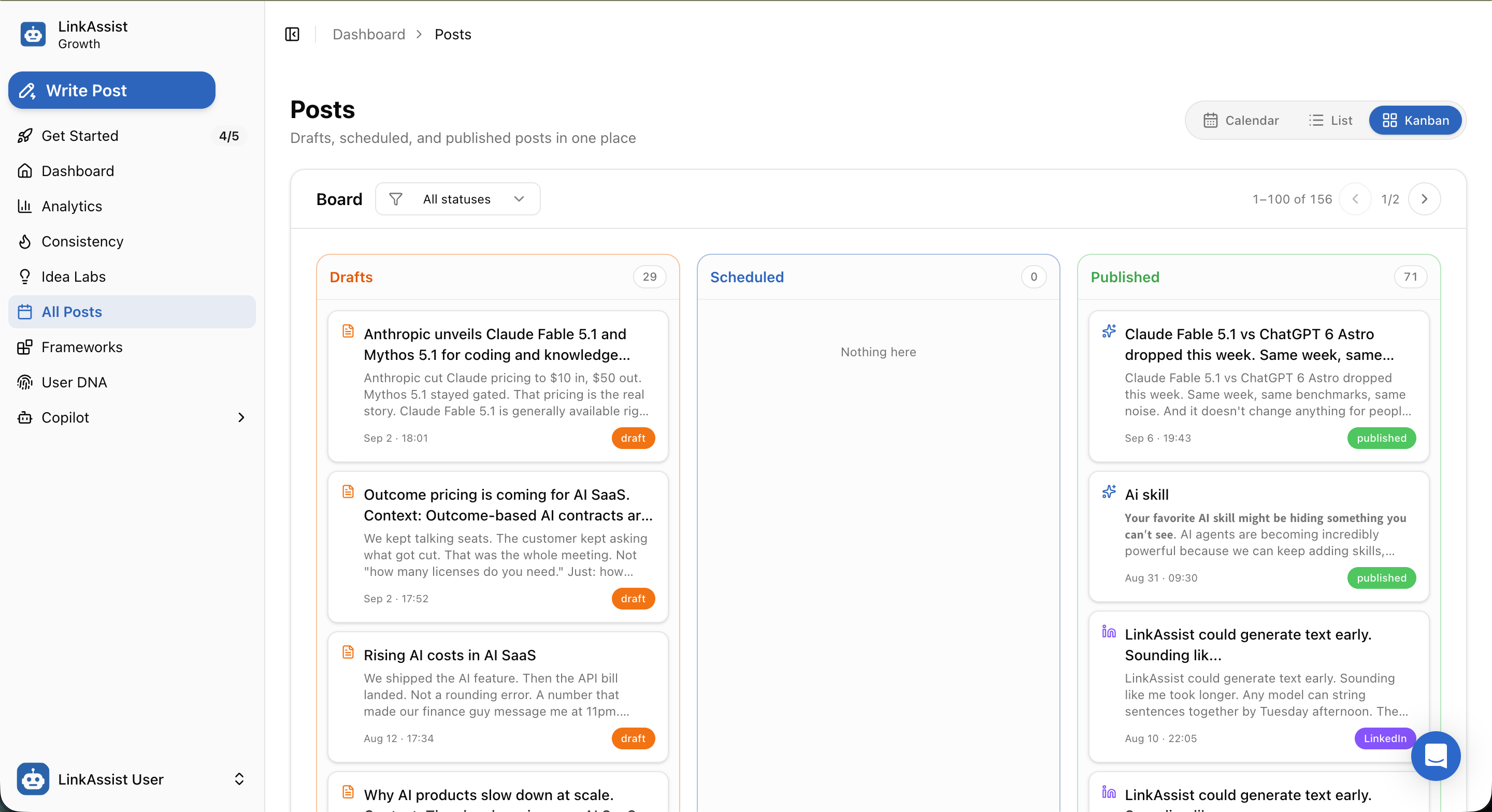
The Kanban Board View visualizes your content as a pipeline workflow, categorizing every post into distinct lifecycle columns.
Kanban Pipeline Columns
- Drafts Column (e.g.,
29):- Contains all unreleased drafts with creation timestamps (
Sep 2 · 18:01) and orangedrafttags. - Allows creators to build an idea backlog and prioritize posts for editing.
- Contains all unreleased drafts with creation timestamps (
- Scheduled Column (e.g.,
0):- Displays all posts queued for automatic publishing.
- Shows empty-state indicators (
Nothing here) when your upcoming publishing queue needs replenishment.
- Published Column (e.g.,
71):- Archives all live posts with publish timestamps (
Sep 6 · 19:43) and greenpublished/ purpleLinkedInbadges.
- Archives all live posts with publish timestamps (
Post Detail & LinkedIn Live Preview Modal
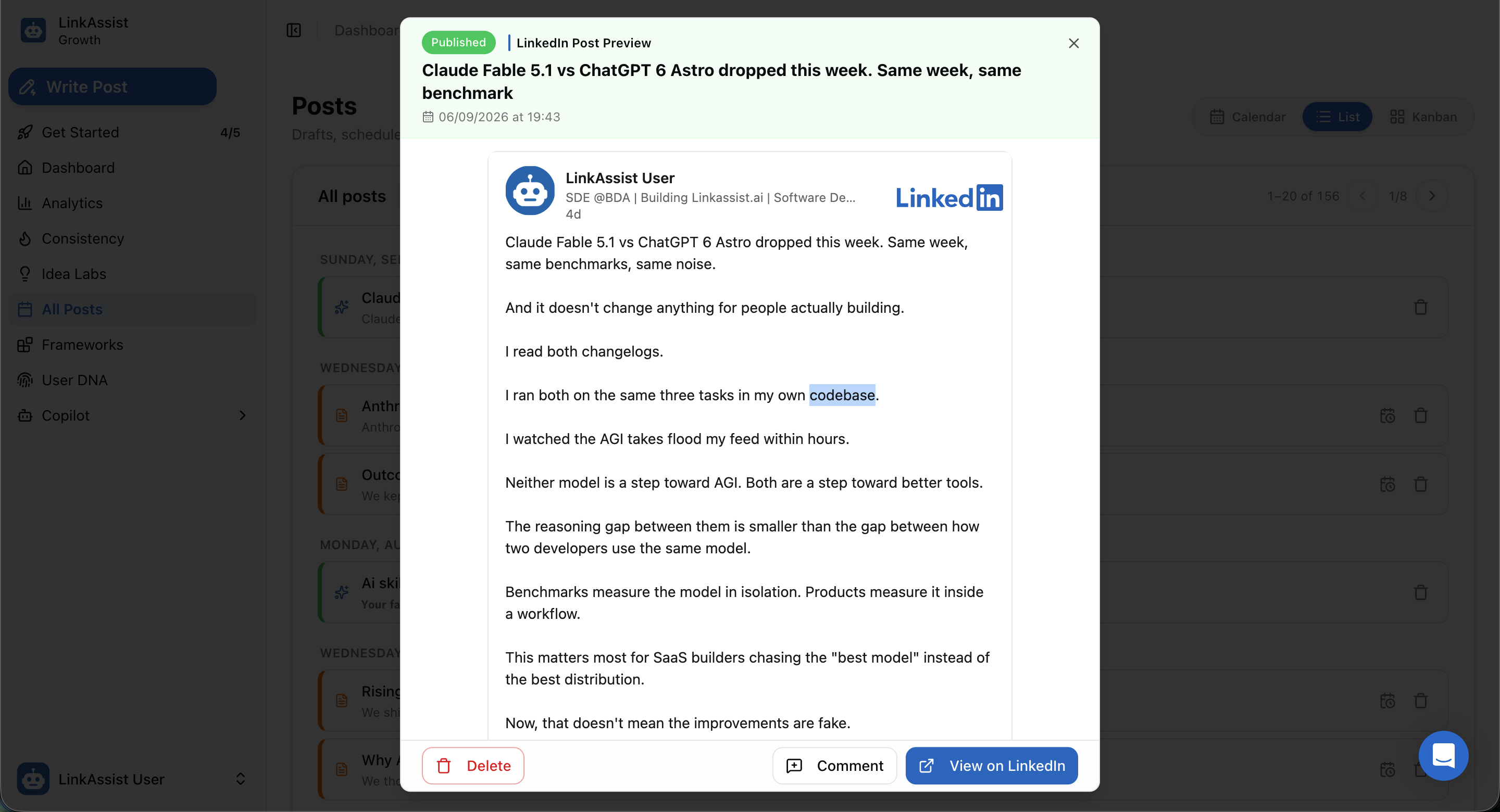
Clicking on any post across the Calendar, List, or Kanban views opens the LinkedIn Post Preview Modal.
Modal Features & Actions
- Live LinkedIn Feed Simulation: Renders your post exactly as it appears on LinkedIn, including your profile picture, headline, post formatting, bold text, code blocks, and spacing.
- Publication Metadata: Displays exact publication date and time (
06/09/2026 at 19:43) along with the live status badge (Published). - Direct Post Actions:
- 🗑️ Delete: Remove the post from your LinkAssist database.
- 💬 Comment: Add or manage first-comment discussions directly from the modal.
- 🔗 View on LinkedIn: Open the live post directly on LinkedIn in a new browser tab to check real-time views, likes, and comments.
Comparison of View Methods
| View Method | Best Used For | Primary Advantage |
|---|---|---|
| 📅 Calendar | Monthly planning & frequency tracking | Identifies publishing gaps and ensures weekly consistency. |
| 📋 List | Content auditing & bulk management | Chronological history with quick scheduling and deletion actions. |
| 📊 Kanban | Workflow pipeline & stage tracking | Clear visibility of post progression from Draft $\rightarrow$ Scheduled $\rightarrow$ Published. |
Next Steps
Post Writer
Craft high-converting LinkedIn posts from scratch, voice notes, YouTube videos, blogs, PDFs, or raw text with real-time mobile and desktop previews.
Campaigns
Set up automated, theme-driven LinkedIn posting series with intelligent pillar rotation, recurring timeslots, and automated AI generation.